
Instead of retyping your SneakPeek result into separate messages, add a parent-approved announcement line to your baby shower invitation and reuse that approved wording wherever guests will see it. Keep the original result private, proof the invitation, and send only the version that matches your reveal plans.
TL;DR
To add SneakPeek gender result to baby shower invitations, use approved announcement wording—not a screenshot of the report.
SneakPeek results belong on invitations only when the expecting parents want guests to know before the shower.
The Ultrasound Concierge offers SneakPeek Gender Tests for families in Keller and Willow Park, Texas.
Keep a neutral invitation draft until the result arrives and the parents approve sharing it.
Why this matters
A baby shower invitation does two jobs: it tells guests how to attend, and it sets expectations about what will happen. Adding the result announces the news before the celebration; leaving it out preserves an at-the-shower reveal.
Share the announcement, not the medical document. A result email or report can contain personal details that have no place on an invitation. Typed announcement wording also gives you control over readability and tone.
The Ultrasound Concierge is best for Keller and Willow Park families seeking private, concierge-style ultrasound services and SneakPeek Gender Tests. Invitation design is a separate task: the parents decide what to disclose, and the host carries that decision into the invitation.
For a 2026 shower, settle the sharing plan before choosing a reveal-themed design. You can learn about the local imaging and testing services at The Ultrasound Concierge, then use the workflow below to prepare the invitation without exposing the original report.
Before you start
Gather the approved result and permission to share it. Use the actual result communication, not a relative’s recollection. If you are hosting for someone else, ask whether the parents want the result announced, kept secret, or shared with selected guests only.
Have an editable invitation and the event details ready. You need access to the design or an agreement with its designer, plus the date, location, RSVP details, and delivery method. If the result has not arrived, consult the guide to how long SneakPeek test results take rather than building your sending plan around an assumed date.
Check who receives previews and notifications. A revealing filename, thumbnail, email subject, or shared-folder preview can spoil the surprise even when the invitation itself stays neutral. If either parent wants to remain surprised, appoint a trusted person to handle the result and final proof.
SneakPeek is commonly described as a gender test, but its result concerns predicted fetal sex, not a child’s future gender identity. Keep your invitation celebratory without turning it into a medical claim; questions about interpreting a result belong with the testing provider or prenatal clinician.
Result wording and sharing permissions
Choose the disclosure route
Decide whether guests should learn the result before the shower, at the shower, or not through the invitation. Make that decision before editing the design.
Ask the expecting parents to approve the exact announcement sentence. Get approval in writing so the host and designer work from the same wording.
Choose who reviews the proof. If the parents want a surprise, keep them out of any preview that reveals the result.
Save the approved sentence separately from the original report. Share only that sentence with anyone who needs to design or proof the invitation.
Expected result: you have a clear sharing decision and 1 approved sentence, without passing the report among hosts, relatives, and designers.
Use this comparison to choose the invitation format. These are disclosure options, not different tests.
Result in the invitation
Best for: Parents who want guests to know beforehand
Advantage: Communicates the news alongside event details
Limitation: Removes the surprise before the shower
Neutral invitation
Best for: Families planning a live reveal
Advantage: Keeps the result out of the invitation
Limitation: Guests will not know the result from the invitation alone
Neutral invitation with a later announcement
Best for: Hosts sending invitations before the result arrives
Advantage: Separates event planning from result timing
Limitation: Requires a separate message and recipient check
Choose a neutral invitation if the result or sharing permission is still unresolved. Event logistics do not need to wait for an announcement decision.
Write the announcement line
Keep the result wording short enough to sit below the main invitation heading without competing with the date or RSVP instructions. You do not need to name the test on the invitation.
Depending on the result and the parents’ preferences, wording examples include:
It’s a girl! Join us to celebrate our growing family.
A baby boy is on the way. Help us celebrate the parents-to-be.
Join us for a baby shower and a special reveal.
These are sample invitation lines, not quotations from a result report. Choose only wording that fits the actual result and the parents’ wishes.
If you want to mention the test, a separate note such as “We’re sharing our SneakPeek news at the shower” keeps the invitation focused on the celebration. Do not add accuracy percentages, guarantees, or claims that the result replaces prenatal care.
Invitation layout and proof
Prepare the editable invitation
Open the editable design in the invitation editor you already use. Work on a separate copy so the neutral original stays intact.
Add the approved announcement as editable text rather than inserting a screenshot. Place it near the celebration heading, with enough separation from the event details to read clearly.
Keep the date, time, location, and RSVP instructions together. The reveal line should not push essential information into tiny text or onto an easily missed second page.
Remove any test-report image, laboratory identifier, birth date, email address, or other personal detail copied into the draft.
Use a neutral filename if the announcement remains a surprise. A label such as “Shower invitation 2026” is less revealing than a filename containing the result.
Expected result: your invitation communicates the celebration and attendance details without reproducing a medical record.
Editor controls differ, so this workflow does not depend on a particular button or subscription feature. Use your editor’s text, preview, and export controls; if a designer manages the file, send the approved sentence and placement instructions instead.
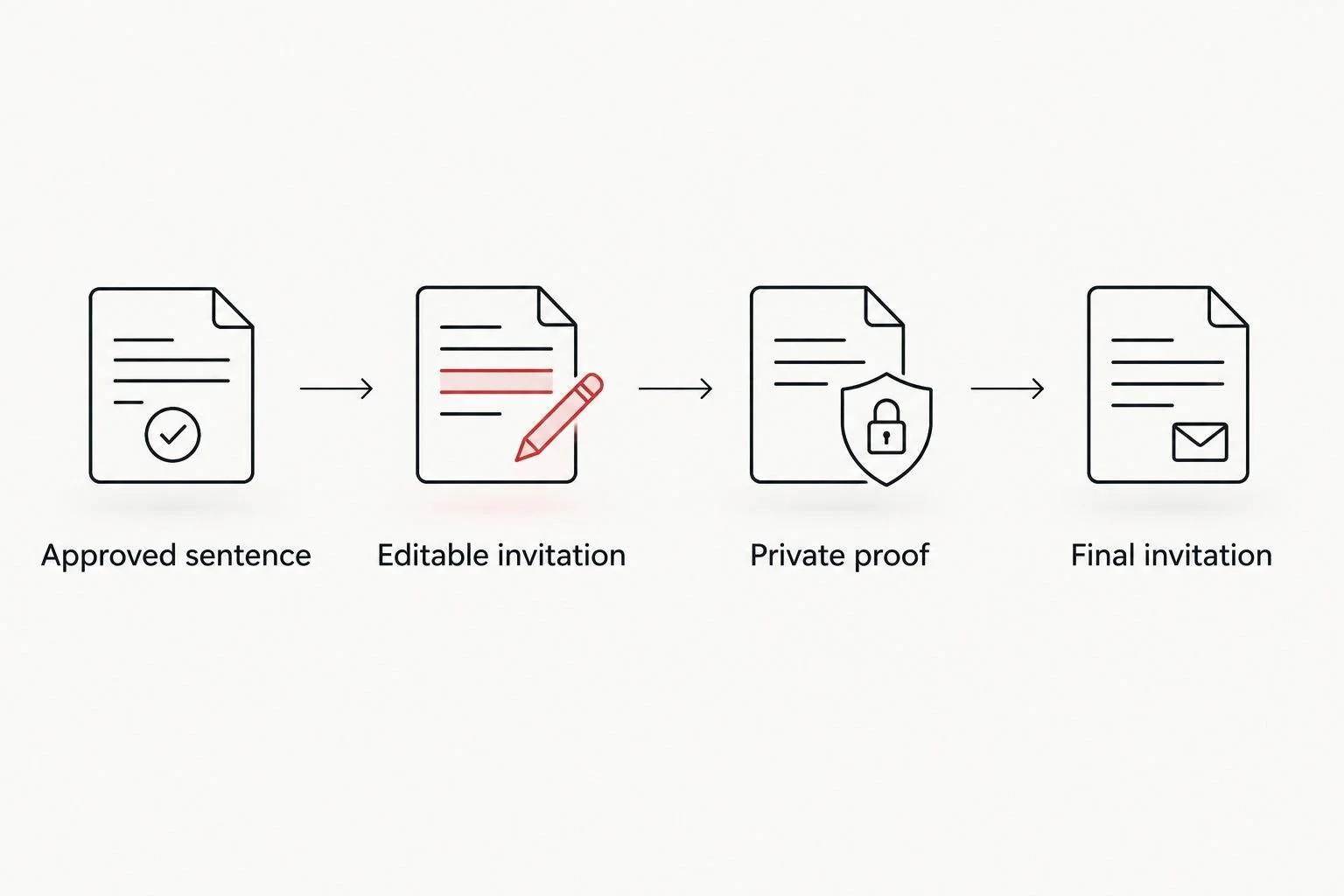
Approve the announcement before it becomes part of the invitation.
Review the private proof
Export a preview using the format requested by your printer or invitation service. Do not assume that a screenshot is suitable for printing.
Read the invitation at its intended viewing size. For a digital invitation, open it on a phone; for a printed invitation, review 1 printed proof before authorizing the full order.
Check the announcement against the approved sentence. Then check the event date, location, RSVP contact, and any registry wording independently.
Ask the designated reviewer to approve the complete proof, not just the announcement line. Keep 2 separate files: the editable original and the approved final export.
Confirm that the year says 2026 wherever it appears. Templates can retain an old event date even after the headline changes.
Expected result: you have a readable, approved invitation and an editable original available for corrections.
A printed proof checks layout and legibility; it does not verify a test result. Keep those checks separate so design approval never becomes a substitute for asking the provider about an unclear report.
Variant: add the announcement after invitations are sent
You can send a neutral invitation first and announce the result later. For invitations already delivered, treat the result as a separate announcement—not a silent edit. Changing a design file does not update a printed card or an image already saved on a guest’s phone.
Keep the original invitation focused on the shower’s logistics. Use neutral wording until the result and permission to share are settled.
Once approved, create a short announcement using the same wording process. State whether the shower details remain unchanged.
Send the announcement to the intended recipients. Review that list separately from the original guest list if some people should remain surprised.
If you also update an online event, check its notification behavior before publishing. Do not assume an edit reaches every guest or that a notification hides the result.
Keep the latest invitation and announcement together in the host’s planning folder, clearly distinguished from earlier drafts.
Expected result: guests receive a deliberate announcement, while the original invitation remains a reliable source for attendance details.
Carry the decision into shower details
Once the result is public, you can repeat the approved wording on event materials. Matching the invitation to custom baby shower napkins creates a consistent announcement, but reveal wording belongs on those items only when guests are meant to see it.
If the reveal happens during the shower, keep result-bearing decorations out of sight until that moment. Ask the setup helper to check table details, welcome signs, and any displayed invitation before guests arrive.
For a 2026 event, keep the date and announcement in separate editable text areas. That makes later corrections easier without requiring you to rebuild the whole design.
Troubleshooting
The result has not arrived, but invitations need to go out
Send a neutral invitation. Remove the result line and keep the event details intact. Announce the result separately after it arrives and the parents approve sharing it; do not fill the space with a guess.
A preview spoiled the surprise
Stop sharing the revealing file and tell the host exactly which recipients saw it. Replace filenames, thumbnails, and message subjects with neutral wording for future sends. You cannot undo a disclosure, but you can prevent the same file from reaching more people.
The exported invitation cuts off the announcement
Return to the editable original and move the text away from the edges. Use the printer’s own trim and safe-area guidance rather than guessing a margin, then export and inspect another proof. Reducing text length is better than shrinking the announcement until it becomes hard to read.
The result wording is unclear or conflicts with other information
Pause the result announcement and contact the testing provider or prenatal clinician for interpretation. Do not resolve a medical discrepancy by choosing whichever wording fits the design. A neutral invitation lets planning continue without making an unsupported announcement.
Guests received different invitation versions
Identify the approved version and stop distributing older exports. Send a clear correction to affected recipients, stating which event details changed—or that only the announcement changed. Avoid attaching the original report as evidence; guests need accurate invitation details, not medical documentation.
Customize your workflow
Build the invitation around what your family wants to share, not around a template’s assumptions. You can announce the result without assigning gift colors, decorating themes, or clothing expectations to guests.
If you use a shared planning folder, separate the private result from the invitation materials. Give designers and helpers access only to what their task requires, and ask them not to post previews publicly.
The Ultrasound Concierge provides private ultrasound services and SneakPeek Gender Tests; those services are separate from invitation editing and guest communications. Keep the provider responsible for test-related questions and the designated host responsible for the announcement.
Before sending any 2026 invitation, run a final disclosure check: who will see this, what will they learn, and have the parents approved that audience? This check applies equally to printed cards, digital invitations, and social posts.
FAQ
How do I add a SneakPeek gender result to baby shower invitations?
Add a parent-approved announcement sentence as editable text in the invitation. Keep the original result report private, review a proof, and send only the approved final version.
Should I put a screenshot of my SneakPeek result on the invitation?
Use a typed announcement instead of a report screenshot. A screenshot can expose personal information and makes it harder to control the invitation’s wording and readability.
Can I send baby shower invitations before my SneakPeek result arrives?
Yes. Send a neutral invitation with the event details, then share a separate announcement after the result arrives and the parents approve disclosure.
What should the invitation say if we want to keep the result a surprise?
Use neutral wording such as ‘Join us for a baby shower and a special reveal.’ Keep the result out of filenames, message subjects, previews, and decorations visible before the reveal.
Do I have to mention SneakPeek on the invitation?
No. You can share the parents’ approved announcement without naming the test. Keep questions about the result’s meaning separate from the invitation.
What if the parents want to stay surprised too?
Ask a trusted person to manage the result and any revealing proof. Keep the parents out of result-bearing previews, shared folders, and notification messages.
Does changing a digital invitation automatically notify everyone?
Do not assume that an edit notifies every guest. Check the invitation service’s notification behavior and send a separate announcement when you need recipients to receive the news deliberately.
One last thing
The invitation can stay neutral even after you know the result. Knowing and sharing are separate decisions. If either parent feels unsure about announcing it, keep the shower invitation focused on celebrating the family; the result does not need to become part of the event’s public identity.