
How to turn a gender reveal ultrasound into a birth announcement
Instead of rebuilding your announcement after delivery, turn your gender reveal ultrasound into a reusable draft now, then add a newborn photo and confirmed birth details when you are ready. Save the original scan, prepare a private layout, and keep the finished announcement unpublished until you approve it.
TL;DR
Gender reveal ultrasound to birth announcement: reuse one scan, prepare a draft, and confirm birth details before sharing.
The Ultrasound Concierge suits Keller and Willow Park families seeking private, personalized pregnancy ultrasound services.
Keep ultrasound originals unchanged; remove identifying details only from the copy you plan to share.
Pair an ultrasound keepsake with a newborn photo, but keep medical information out of the announcement.
Why this matters
A gender reveal celebrates something learned during pregnancy. A birth announcement confirms that your baby has arrived. Reusing the ultrasound connects those moments without confusing an expected arrival with an actual birth.
The Ultrasound Concierge is best for Keller and Willow Park families seeking private, personalized pregnancy ultrasound services. Its role is imaging, not announcement design or publishing; you choose what to include and who receives it. Start with The Ultrasound Concierge if you are exploring pregnancy imaging rather than editing an existing scan.
For a 2026 announcement, the simplest approach is still a saved draft with a deliberate final review. You do not need an automated connection between medical images and social media. Keeping publication manual gives you control over timing, personal details, and family boundaries.
Before you start
Gather the files and editing access. Have your saved ultrasound image, a device with a photo or document editor, and somewhere private to store the draft. Use a newborn photo later only if you want one.
Agree on the audience. Decide with the other parent or relevant family members whether the announcement is for direct messages, printed cards, or public sharing. Get permission before including another person's photo or personal information.
Check the hidden-information problem first. Ultrasound pictures can display names, dates, facility details, or other identifiers around the image. Preserve the original, then create a separate sharing copy; a small thumbnail is not enough to check whether private text remains readable.
These instructions are editor-independent. They describe the content and file decisions rather than naming buttons that differ between apps and devices. You can complete the workflow without giving a design service access to a medical portal.
Source files and privacy settings
Prepare the image you will reuse
Save the original. Download or obtain the image through the method your imaging provider supplies. Keep that file unchanged rather than editing your only copy.
Create a sharing copy. Make 2 copies with different purposes: an untouched archive and an editable announcement image. Use descriptive filenames such as ultrasound-original and ultrasound-sharing-copy.
Inspect the entire frame. Enlarge the sharing copy and check every edge for personal details. Crop unwanted information out of that copy, or cover it with a solid, opaque shape before exporting the finished image.
Review the exported copy. Open the actual exported file, not just the editing canvas. Confirm that no identifying text remains visible and that the part of the scan you want to show is intact.
Expected result: You have an untouched ultrasound original and a separate image suitable for your intended audience. Neither file is published.
Do not crop away information from a clinical record you need for care. The announcement copy serves a different purpose from the medical original, and neither a decorative edit nor a caption should imply a new medical finding.
If you have not had your appointment, ask about image delivery before planning the design. For questions about scan timing rather than announcement timing, read how far along you need to be for a gender reveal ultrasound.
Keep access separate from sharing
Save the announcement in a folder you control. Before uploading anything to an editor, review whether the project will be private, shared with collaborators, or accessible through a public link.
A folder named Birth announcement 2026 can help distinguish the project from older family files. The name is for your organization; it does not belong on the published card unless you want it there.
Announcement layout and draft text
Choose the format before arranging the photos
Best for most families: a still-image announcement with the ultrasound beside a newborn photo. It connects pregnancy and birth without requiring relatives to play a video. Its limitation is space: two photographs leave less room for text.
Choose the format based on the recipient, not the number of editing features available.
Still-image announcement
Best for: Direct messages and a simple social post
Main benefit: Combines the scan, newborn photo, and brief text
Main limitation: Small text becomes difficult to read on a phone
Printed card
Best for: A physical family keepsake
Main benefit: Gives the ultrasound a place in a lasting announcement
Main limitation: Requires print-specific cropping and a proof check
Short video
Best for: Families who already have a saved ultrasound clip
Main benefit: Connects the pregnancy clip with the arrival message
Main limitation: Adds editing work and needs review for sound and private details
The ultrasound does not need to show the baby's sex to belong in a birth announcement. A profile or another image you find meaningful can tell the pregnancy-to-birth story without including an intimate anatomical view.
Build a draft that cannot be mistaken for a birth announcement
Set the destination. Decide whether the first finished version will be viewed on a phone or printed. Start with that destination's layout requirements rather than enlarging a small finished image later.
Place the ultrasound. Give the scan enough room to remain recognizable. Leave a separate space for the newborn photo if you plan to include one.
Write the draft caption. Use a short, non-factual planning note such as arrival details to be confirmed. Do not enter an expected date as though it were the birth date.
Limit the main message. Aim for 3 short lines: a welcome, the name you choose to share, and confirmed arrival information. Weight, length, hospital, and exact birth time are optional, not required fields.
Mark the working version. Put DRAFT on the editing canvas until you are ready for the final review. Keep that version out of any publishing queue.
Expected result: You have an editable announcement with a scan, a clear place for later information, and no claim that the baby has already arrived.
For example, your eventual message can simply welcome your baby by name and say that your family is taking time together. You do not owe a public audience measurements, a delivery story, or an explanation of when you chose to post.
Birth details and release controls
Finish only after the birth details are confirmed
Duplicate the draft. Keep the editable template and create a separate final version. This protects the layout if you need to correct the announcement later.
Add the newborn image. Use a photo you have permission to share. Check the background for wristbands, documents, room signs, and other details you do not want public.
Confirm every written detail. Check name spelling, the actual birth date, and any measurements against information you trust. Omit anything you have not confirmed.
Choose one reviewer. Ask 1 trusted adult to check the finished file for spelling, privacy, and whether the family is ready to share.
Export and reopen. Inspect the final image at normal phone size and enlarged size. Check a print proof separately if you are making cards.
Release deliberately. Send or publish only after approval. Ask relatives not to repost until you have set your own boundaries.
Expected result: The final announcement describes an actual birth, contains only approved details, and reaches the audience you selected.
For a birth in 2026, use 2026 wherever the actual birth date appears. If a draft spans a calendar change, verify the complete date rather than replacing only the month and day.
Do not schedule a birth announcement around the due date. A due date is not confirmation of birth, and a scheduled post removes the final chance to reconsider the wording or audience.
The Ultrasound Concierge provides pregnancy ultrasound services; a keepsake image does not replace prenatal care or confirm that a birth has occurred. Keep health questions with your treating clinician and announcement decisions with your family.
A second workflow: update a private family keepsake
You can also reuse the same layout as a private pregnancy-to-newborn keepsake without making a public announcement. Best for privacy-focused families: a private album preserves the connection between the scan and the newborn photo, but it still needs access checks.
Use the same sequence each time you add an approved image: select the file, inspect it, update the draft, and review the recipient list. Keep the album private rather than assuming a shared link limits who can view or forward it.
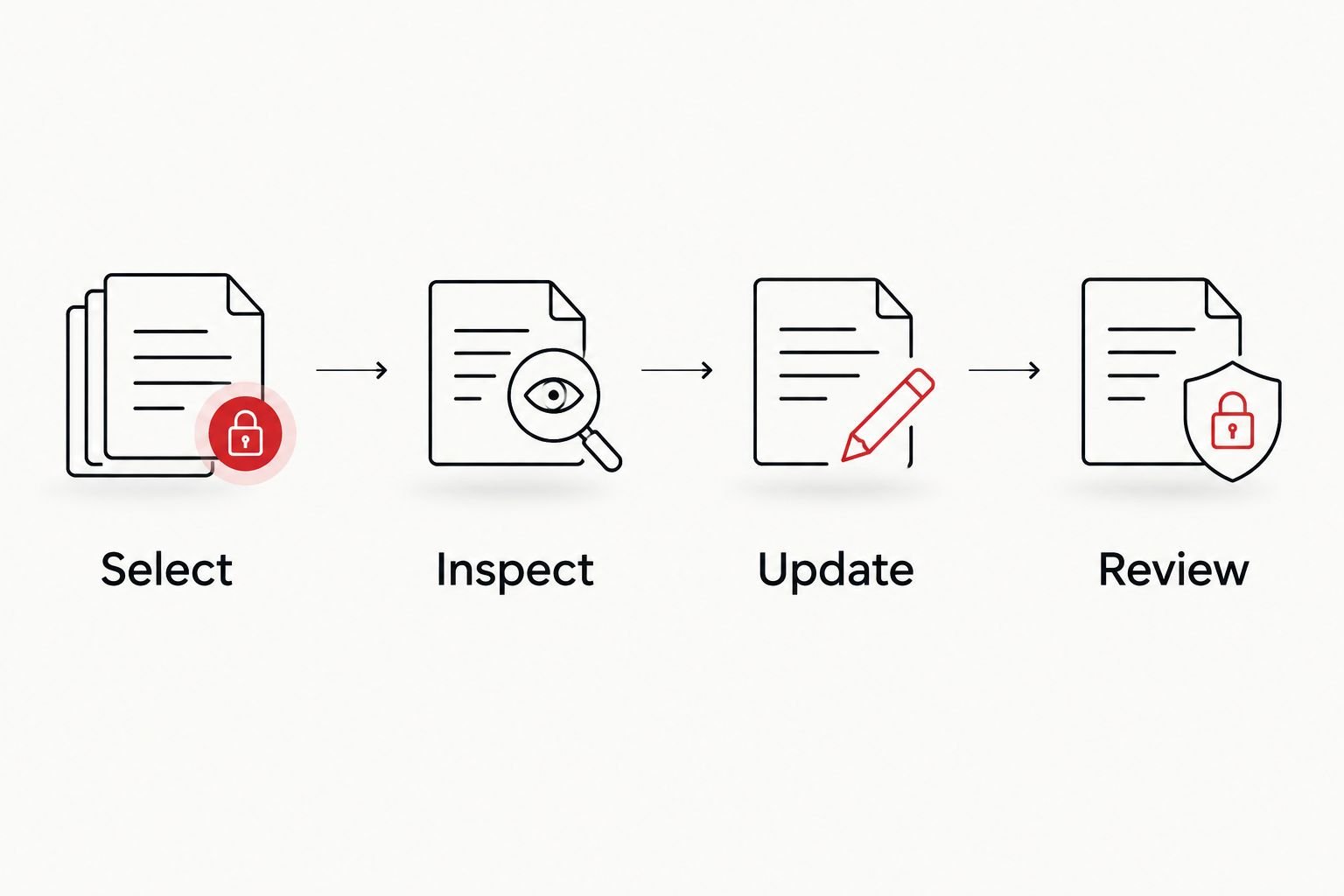
Review both the image and its audience before sharing an updated keepsake.
For a 2026 family album, separate pregnancy images from birth announcements with clear captions. A scan date and a birth date describe different events; do not label one as the other.
If you later choose to share a video, use only material you already have permission to use. Watch the whole export with sound on before sending it, because a clean opening frame does not establish that the rest of the clip is private.
Troubleshooting
The ultrasound looks blurry in the layout
Return to the original file rather than using a screenshot from a message thread. Reduce the image's display size if enlarging it makes the edges look soft; editing cannot recover detail that the source image does not contain.
Personal information remains visible
Revisit the sharing copy and inspect the full frame. Remove identifying areas from the exported image, then open that file independently to verify the result; do not rely on a movable overlay in an unfinished project.
The birth announcement still sounds like a gender reveal
Replace future-tense wording with a confirmed arrival message. Keep the ultrasound as the visual link to pregnancy, but remove phrases that suggest you are announcing an expected baby rather than welcoming a newborn.
The printed card cuts off text or photographs
Compare the design with your printer's supplied trim and safe-area instructions. Move important content away from the edges and approve a proof before committing to the finished card.
A relative shares the draft too early
Contact the person directly and ask them to remove it. Send the approved version only when you are ready, and state whether reposting is allowed; deleting your own copy does not remove copies someone else saved.
Customize your workflow
Make a public version and a family-only version if the audiences need different information. The public image can contain a welcome and first name, while the private version can hold additional details you have agreed to share.
Use the same privacy review for both. A smaller audience is not a reason to leave medical identifiers visible or to include someone else's information without permission.
If your 2026 plan includes another pregnancy imaging appointment, ask The Ultrasound Concierge about the service and image-delivery details relevant to your visit. Build the announcement around images you already have rather than making a particular pose or keepsake image a requirement of care.
FAQ
How do I turn a gender reveal ultrasound into a birth announcement?
Save a separate sharing copy of the ultrasound, place it in an editable layout, and add confirmed birth details after delivery. Review the exported announcement for privacy and spelling before you send it.
Can I prepare my birth announcement before my baby is born?
Yes, you can prepare the layout before birth, but keep it clearly marked as a draft and unpublished. Add the actual birth date and any other confirmed details only after your baby arrives.
Do I need a newborn photo next to the ultrasound?
No, a newborn photo is optional. An ultrasound image with a brief, confirmed arrival message can serve as the announcement without an additional photograph.
Should I include my baby's weight and exact birth time?
No, weight and exact birth time are optional personal details. Include only information you are comfortable sharing with the intended audience.
Can I use a screenshot of my ultrasound for the announcement?
You can use a screenshot, but use the original image file when you have it. Check the screenshot for visible interface elements and personal information, and avoid enlarging it beyond a readable size.
Is it better to make a printed announcement or a digital announcement?
A digital still image suits direct sharing, while a printed card suits a physical keepsake. Choose based on your recipients, and review the digital export or print proof before release.
Does a gender reveal ultrasound replace my prenatal scans?
An elective gender reveal ultrasound does not replace clinician-directed prenatal care. Ask your treating clinician which examinations you need, independently of your announcement plans.
One last thing
The scan and the newborn photo do not need to match. The ultrasound records a moment during pregnancy; the newborn photo records a different moment after birth. Let the caption explain that connection instead of editing either image to suggest a precise resemblance.
Save the quiet version, too. A private copy without a public caption can remain a family keepsake long after the announcement has served its purpose.