
How to submit an ultrasound invoice to your insurance portal
Instead of repeatedly sending receipts and asking whether your claim arrived, submit your ultrasound invoice through your insurance portal with the required claim form and supporting documents, then save the submission confirmation. This guide walks you through checking eligibility, preparing your paperwork, uploading it securely, and tracking the insurer’s decision without treating submission as a promise of reimbursement.
TL;DR
To submit ultrasound invoice to insurance portal, confirm member-submitted medical claims are accepted before uploading documents.
An itemized invoice, proof of payment, and a completed claim form serve different purposes; follow your insurer’s requirements.
The Ultrasound Concierge offers private ultrasound imaging; your insurance plan determines coverage and reimbursement.
Save the submission confirmation, and correct an existing claim through the insurer’s instructions rather than creating duplicates.
Why this matters
A successful upload is not a coverage decision. Your insurer still reviews the service, benefits, provider information, and any applicable medical-necessity requirements. A receipt confirms a transaction; it does not establish that your plan covers the scan.
Diagnostic imaging and an elective keepsake visit are not interchangeable for insurance purposes. Before preparing a claim, review whether insurance covers an elective ultrasound, then ask your insurer about the specific service you received.
The Ultrasound Concierge is best for patients seeking private, personalized ultrasound imaging in the Keller and Willow Park area. That care setting does not establish network participation or insurance benefits. For a service received in 2026, check the plan terms that applied on the date of the scan—not simply the benefits displayed today.
Before you start
Access: Have your insurer’s member login, insurance card, and the correct patient’s details. If you are submitting for a dependent, confirm that your account permits access to that dependent’s claims.
Materials: Gather the invoice, payment receipt if applicable, and your insurer’s member medical claim form. Ask whether an itemized statement or superbill is required; request missing documentation from the imaging provider rather than creating it yourself.
The easy-to-miss issue: Confirm that the portal accepts member-submitted medical claims. A general document upload, medical-records inbox, or benefits-account reimbursement tool is not automatically the correct destination. Ask about the filing deadline before spending time assembling the packet.
Portal screens differ by insurer and plan. The steps below describe the information to locate, not a shared set of button names. Use your insurer’s actual instructions whenever the screen differs.
Claim route and eligibility
Sign in through your insurer’s official member access. Use the information on your insurance card or established member account. Avoid sending health documents through an unfamiliar upload link.
Select the patient who received the scan. Check the patient name, member identification, and coverage associated with the service date. A parent’s login does not mean the parent should be entered as the patient.
Locate the member medical claim instructions. Find the process for submitting a bill you received or paid yourself. Confirm whether submission happens inside the portal or through a separate form and delivery method.
Check whether the provider already submitted a claim. Ask the provider and inspect your claim history. Do not create a second claim simply because reimbursement has not appeared.
Ask the insurer about the service and deadline. Confirm applicable benefits, network rules, referral or authorization requirements, and the member filing deadline. If the service occurred in 2026, give the actual service date when asking these questions.
Expected result: You know who should submit, which channel accepts the claim, and which requirements apply. If the portal does not accept member medical claims, stop here and follow the insurer’s permitted submission method.
Coverage questions deserve precise answers. Ask whether the actual service is eligible for review under your plan, not whether “ultrasounds” are generally covered. Keep the representative’s reference number and written instructions when provided.
Invoice and document packet
Read the claim form before scanning anything. Its instructions determine which supporting documents belong in the packet. Check whether the form requires a signature or a separate authorization.
Inspect the invoice for identifying details. Compare the patient name, service date, provider details, and service description with your records. Ask the provider to correct discrepancies before submission.
Request an itemized statement when required. Insurers can require procedure codes, diagnosis information, provider identifiers, or other billing details. Only the provider should supply or correct clinical and billing information from its records.
Separate the bill from proof of payment. An invoice describes billed services; a receipt documents payment. Include both when the insurer requests both, and do not assume a card transaction alone identifies the medical service.
Create readable files in the accepted format. Follow the portal’s file-type and size limits. Include every required page, with signatures, dates, and document edges visible.
Keep the originals together. Use 1 folder for the claim form, invoice, supporting records, and later correspondence. Retain an unchanged copy of each document before making upload versions.
Expected result: Your packet matches the insurer’s checklist, and every document is readable. You have not guessed a diagnosis, selected a procedure code yourself, or altered the provider’s invoice.
What belongs in the packet?
Use the insurer’s requirements as your checklist, not a generic promise that every claim needs every document below:
Claim form: Supplies member, patient, and claim information in the insurer’s required format.
Itemized invoice: Identifies the services and billing details supplied by the provider.
Payment receipt: Documents payment when required for the claim.
Additional records: Include an order, referral, or clinical documentation only when requested or required.
Do not upload ultrasound photos simply because they are available. Submit the documentation the insurer requests, and avoid adding unrelated medical information.
Portal entry and attachment review
Begin the member medical claim process. Confirm that you are filing a medical claim rather than requesting reimbursement from a separate spending account.
Enter patient and coverage details from the source documents. Match the member identification and patient information carefully. Use the coverage associated with the scan’s date of service.
Copy the service and provider information accurately. Enter the service date, provider details, and billed information exactly as requested. Where codes or identifiers are required, use the provider-issued documentation rather than searching for a plausible substitute.
Attach each required file. Use the appropriate attachment category if the portal provides one. After uploading, inspect the attachment list and preview files where that function exists.
Complete 3 checks before submitting. Verify patient identity, service details, and attachment completeness. Read any certification or payment-direction statement before agreeing to it.
Submit only after the review is complete. If required information is missing, save a draft when supported and obtain the missing details first.
Expected result: The portal shows that the claim was transmitted or received, rather than merely saved. The required attachments appear in the submission record.
The workflow is simple when each handoff stays separate: confirm the route, prepare the packet, review the entry, and preserve the receipt. Skipping the first handoff is what turns a clean set of documents into an upload sent to the wrong destination.
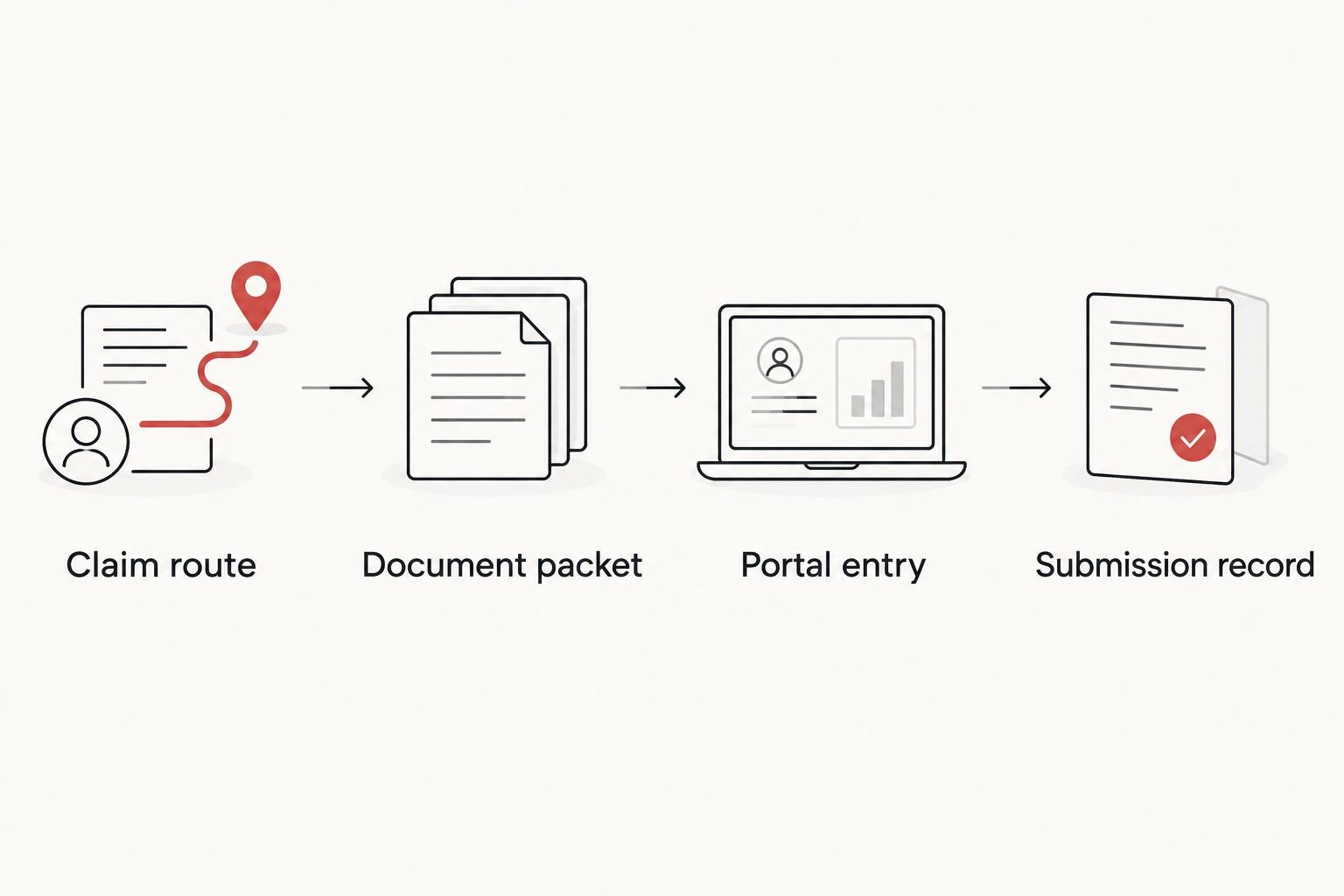
Confirm the claim route before preparing and uploading your documents.
Submission record and follow-up
Save the confirmation immediately. Download the acknowledgment or save a screenshot showing the submission reference and date. If no acknowledgment appears, check submission history before trying again.
Record the insurer’s stated review timeframe. Use the timeframe given for your claim type; do not substitute a general internet estimate. Set 1 reminder based on that guidance.
Check for requests for information. Monitor the claim record and the communication channels you selected. Respond through the channel identified in the request.
Read the explanation of benefits when issued. Compare the patient, service date, processing explanation, and any stated responsibility with your records. An explanation of benefits is not itself a bill.
Resolve discrepancies through the correct route. Ask about a missing document, factual correction, or appeal according to the issue shown. These are different actions.
Expected result: You can identify the submission, show what you sent, and explain its current status. Keep 2026 claim records with the corresponding service documents so later correspondence stays attached to the correct visit.
When the insurer requests more information
An existing claim that needs another document is a different workflow from a claim that has never been filed. Follow the existing claim’s instructions before starting another submission.
New member claim
Best for: A service not already submitted
Advantage: Creates the initial claim record
Limitation: Does not replace a missing-information response or appeal
Existing-claim response
Best for: An insurer’s request for additional documents
Advantage: Keeps the response tied to the claim reference
Limitation: Must follow the requested channel and deadline
Open the insurer’s request and identify exactly what is missing. Obtain that document from the appropriate source, then submit it using the claim reference and response method specified.
If the invoice itself is incorrect, ask the provider for corrected documentation. If the insurer denied coverage, read the explanation and appeal instructions instead of uploading the same unchanged invoice again.
Troubleshooting
The upload fails or the document is unreadable
Check the accepted file format and size limit displayed by the portal. Create a readable copy within those limits, preserving every required page. If the system still rejects it, ask the insurer for an approved alternative delivery method.
A required code or provider identifier is missing
Request the information from the imaging provider. Do not invent a code, substitute another clinician’s identifier, or change the service description to make the form accept it. Ask the insurer how to proceed if the requested information does not apply.
The portal shows no claim after submission
Look for an acknowledgment, saved draft, or submission-history entry. A saved form is not proof of transmission. Contact the insurer with your submission details before filing again and creating a possible duplicate.
The claim is denied or reimbursement does not match expectations
Read the processing explanation first. A documentation issue, benefit exclusion, network rule, or deductible requires a different response. Follow the stated correction or appeal process, and retain the decision notice with your packet.
Customize your workflow
For repeat visits, reuse your organizational checklist—not the previous claim’s service information. Create a separate record for each visit and verify the patient, date, documentation, and submission status each time.
At your next appointment with The Ultrasound Concierge, ask which billing documents can be provided for your records. Separately, ask your insurer which documents it requires; this guide does not establish the practice’s billing procedures or network status.
For your 2026 records, keep a short tracking note beside each packet: service date, submission date, claim reference, current status, and next action. Store it securely because it contains personal health information.
FAQ
How do I submit an ultrasound invoice to my insurance portal?
Use your insurer’s member medical claim process, complete the required form, attach the requested invoice and supporting documents, and save the confirmation. First confirm that your plan accepts member submissions through that portal.
Can I upload just my ultrasound receipt?
Only if your insurer’s instructions accept the receipt as sufficient documentation. A payment receipt does not necessarily include the itemized service details or provider information required to process a medical claim.
Does submitting an ultrasound invoice mean insurance will reimburse me?
No. Submission starts the insurer’s review; your plan’s benefits, exclusions, network provisions, and other applicable requirements determine the outcome.
Can I submit an invoice from The Ultrasound Concierge?
Ask your insurer whether it accepts a member claim for the specific service and what supporting documentation it requires. The Ultrasound Concierge provides diagnostic and elective ultrasound services, but that does not establish insurance coverage for a particular visit.
What if the portal asks for a procedure code or diagnosis code?
Request the relevant billing information from the imaging provider. Do not choose a code yourself or change a diagnosis to try to obtain coverage.
Should I submit another invoice if my claim is still pending?
Do not submit a duplicate simply because the claim remains pending. Check the existing claim record and contact the insurer using your confirmation or claim reference.
Is an insurance claim the same as an FSA or HSA reimbursement request?
No. A medical insurance claim asks the health plan to review benefits, while an FSA or HSA reimbursement request concerns a separate account with its own eligibility and documentation rules. Follow the instructions for the account or plan you are using.
One last thing
The most useful document after submission is the acknowledgment—not another copy of the invoice. It gives you a reference for follow-up and helps distinguish a transmitted claim from an unfinished draft. Before closing the portal, make sure you can find that record again.