
How to add 3D/4D ultrasound milestones to your pregnancy app
Instead of searching through messages for each ultrasound photo, add a dated milestone to your pregnancy tracking app, attach a saved image if the app supports attachments, and keep the original separately. This 2026 guide walks you through a manual workflow for recording 3D/4D ultrasound memories without confusing a personal journal with your medical record.
TL;DR
To add ultrasound milestones to pregnancy tracking app entries, save the original, record the appointment date, and verify the attachment.
The Ultrasound Concierge provides private pregnancy ultrasound imaging for patients in Keller and Willow Park, Texas.
Use a still image for a photo milestone; keep unsupported 4D video outside the app.
A pregnancy journal preserves memories; it does not interpret ultrasound findings or replace prenatal care.
Why this matters
An ultrasound photo’s download date is not necessarily the appointment date. If you save a picture later, an entry created under today’s date can put the memory in the wrong place on your pregnancy timeline.
Record the appointment date deliberately, then add the image. Keep clinical reports and your prenatal team’s instructions separate from your personal captions. A keepsake image does not tell you whether fetal growth or anatomy is normal.
The Ultrasound Concierge provides diagnostic and elective pregnancy ultrasound services in a calm, private setting. The Ultrasound Concierge is best for Keller and Willow Park patients seeking private pregnancy ultrasound imaging. This guide covers organizing your memories afterward, not a direct connection between the imaging provider and your app.
Before you start
Have your files and dates ready. Use an image or video you received, the appointment date, and any gestational age documented by your care team. Do not estimate gestational age from the picture.
Check your app’s capabilities and access. Confirm that you can create a dated journal entry or milestone, attach media if needed, and control who can see it. Have access to the phone folder containing the saved file.
Watch for the non-obvious gotcha: a viewing link is not a saved file. Opening an image in a browser does not necessarily download it. Save an original copy you can open independently before relying on an attachment or link.
App layouts and controls differ. For this 2026 workflow, follow the functions described below rather than assuming every app has the same milestone button or supports video uploads.
If your app has no journal or custom-entry function, use a private photo album for the images and the app’s supported notes function for the date and memory. Do not force personal photos into a medical-results field.
Original file setup
Start with a reliable source file rather than a screenshot of a message. A screenshot can include notifications, identifying details, or surrounding text you did not intend to share.
Open the image or video using the delivery method you received. Follow the sender’s instructions for downloading it.
Save the file to a folder you can locate from your phone’s attachment picker. Open the saved copy directly to check that it is complete.
Preserve the original unchanged. If you want a shareable version, make a separate copy and review it for names, dates of birth, patient identifiers, and other visible details.
Give the copy a recognizable filename, such as 2026-07-14-ultrasound-memory. This is an example format, not an appointment date to copy into your record.
Keep 1 backup copy outside the pregnancy app, using storage whose access and privacy settings you understand.
Expected result: You can find and open the original file without returning to the delivery message. You also know which copy is intended for your private journal or family sharing.
For help with the earlier handoff, see the guide to getting ultrasound photos and video onto your phone. Confirm the delivery method for your own visit rather than assuming a particular format or turnaround.
Choose the entry format
A 3D ultrasound image shows a still view; 4D ultrasound adds motion over time. Your pregnancy app does not need to reproduce the full imaging experience to hold a meaningful milestone.
Still-image milestone
Best for: A visual pregnancy timeline
Advantage: Keeps a chosen image beside the appointment date
Limitation: Does not preserve movement
Video attachment, if supported
Best for: Remembering movement from a 4D recording
Advantage: Keeps a playable clip with the entry
Limitation: Depends on the app’s accepted formats and upload limits
Text-only milestone
Best for: Apps without media attachments
Advantage: Records the date and personal memory without an upload
Limitation: The image remains in separate storage
Start with 1 image per entry while you test the workflow. Add more only after you confirm that the first attachment saves and reopens correctly.
Milestone entry setup
Create the timeline entry around the actual visit, not the day you happen to organize your phone. Choose a title that will still make sense when you read it months later.
Open your pregnancy app’s journal, timeline, or custom-entry area. Use the feature intended for personal entries, if the app provides one.
Create an entry and set its date to the ultrasound appointment date. If the app does not let you change the entry date, put the appointment date at the beginning of the note.
Enter a descriptive title, such as 3D ultrasound memory. Avoid wording that turns the picture into a medical conclusion.
Add gestational age only when you have a documented value from your care team. If you are unsure, omit it rather than calculating it from an image label you do not understand.
Write a short personal caption: what you remember, who attended, or what the moment meant to you. Keep symptoms, test interpretations, and treatment decisions out of the keepsake caption.
Expected result: The entry clearly identifies when the visit happened and what the memory represents, even before you attach a photo.
A reusable caption template keeps later entries consistent:
Appointment date: Use the actual visit date.
Visit memory: Describe the experience in your own words.
Image location: Note where you saved the original.
Clinical follow-up: Keep your care team’s instructions in the appropriate medical record or secure communication channel.
For a milestone created in 2026, include the year when it helps distinguish the appointment from another pregnancy or an older imported photo. Do not change your app’s due date simply to make one image appear under a different pregnancy week.
Attachment and privacy settings
Attach the saved file only after the entry’s date is correct. Then check the saved result from the timeline, rather than trusting the upload preview.
Use the entry’s attachment function, if offered, and select your prepared image. For a video, first check the app’s own guidance on supported formats and file limits.
Review the selected media before saving. Make sure it belongs to the intended appointment and does not reveal information you meant to remove.
Check the entry’s audience and any connected partner, family, community, or sharing settings the app provides. Do not assume that a private account makes every feature private.
Save the entry. Return to the timeline and reopen it to verify the date, caption, and attachment.
Complete 2 checks before sharing: inspect the visible image for personal information, then confirm the intended recipients or audience.
Expected result: The saved milestone opens correctly, shows the intended appointment date, and has the audience settings you selected.
The workflow has four checkpoints: Save originals, Record date, Attach media, and Review privacy. Use the same sequence for each later visit so you do not have to reconstruct the process.
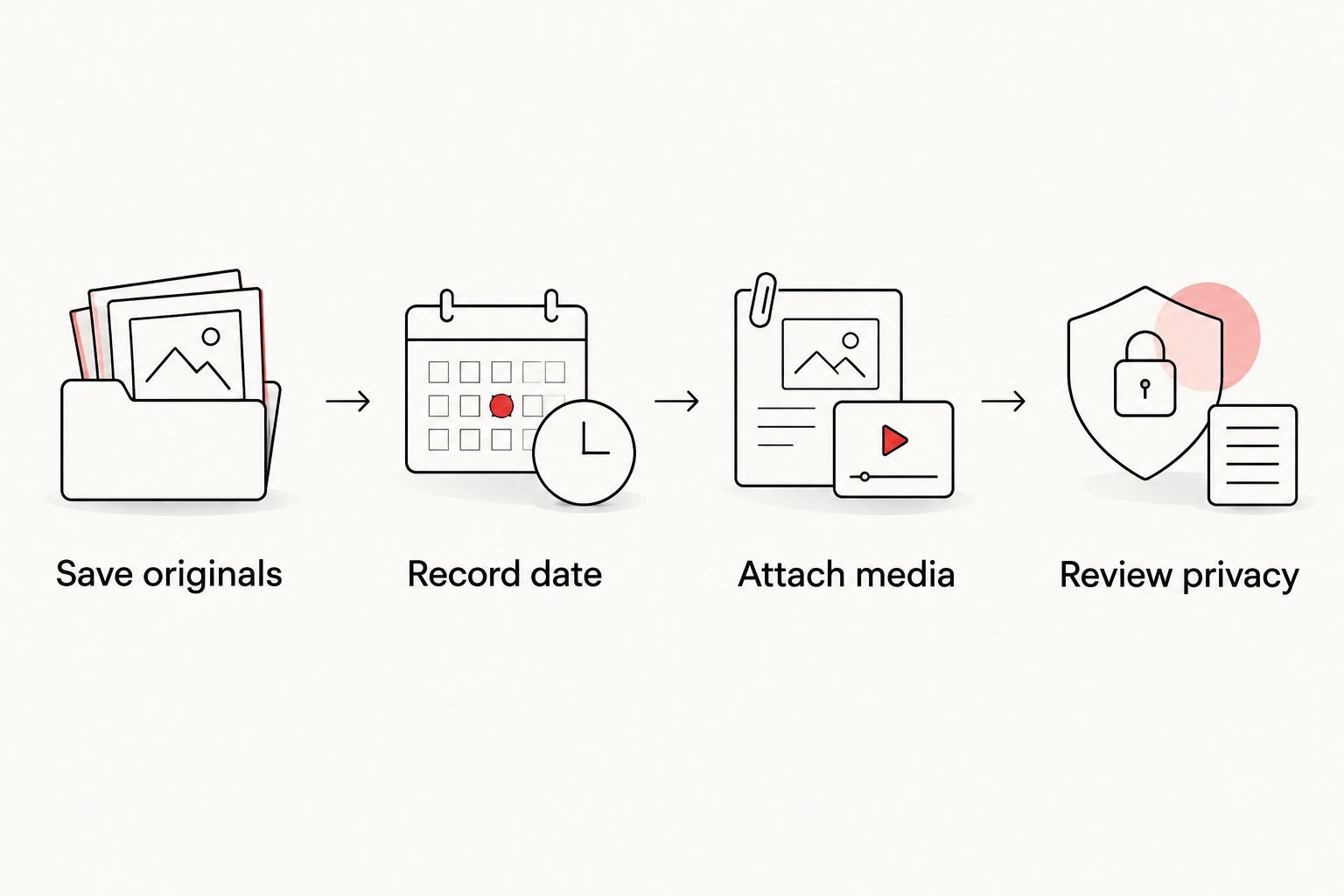
Set the appointment date before attaching media, then check who can see the saved entry.
Add a new milestone after another ultrasound
For a later appointment, create a separate milestone rather than replacing the earlier image. Separate entries preserve the order of your memories without making the app into a growth-assessment tool.
Save the new appointment’s original files in your private storage.
Create a new dated entry using the same title pattern and caption structure.
Attach the new image or supported video, then reopen the saved entry.
Review sharing settings again, especially if you changed connected accounts since the previous visit.
Expected result: Each visit has its own dated memory, while the original files remain outside the app.
If you receive a better-quality copy from the same appointment, update the existing entry instead. Keep the appointment date unchanged and confirm that the replacement attachment opens before removing the earlier copy from the journal.
Do not schedule additional ultrasound examinations just to fill gaps in an app timeline. Follow your prenatal team’s guidance on ultrasound use; questions about symptoms or your baby’s health belong with that team, not in a milestone comparison.
Troubleshooting
The attachment picker cannot find the image
First, open the file from your phone’s storage to confirm that it actually downloaded. Then review the pregnancy app’s photo or file permissions in your device settings; limited access can exclude the image you want.
If the file opens only through a message or browser link, return to the sender’s download instructions. Do not upload account credentials or a private access code as a workaround.
The video will not upload or play
Check the app’s published format and file-size requirements. Keep the original video unchanged while troubleshooting, and use a still image or text entry if the app does not support your recording.
Avoid sending private ultrasound files to an unfamiliar conversion website. A failed attachment is not a reason to give another service access to sensitive images.
The milestone appears under the wrong date or week
Check the entry date first. Some timeline displays follow the date you created the post rather than the appointment date you intended to record.
If the date cannot be edited, state the actual visit date clearly in the note. For conflicting pregnancy dating, ask your prenatal team which documented date to use; do not resolve the discrepancy by interpreting the image yourself.
Someone can see more than you intended
Review the entry’s audience, shared-account access, and any separately shared album or link. Changing an app entry does not remove copies someone already downloaded or screenshots someone already took.
Stop further sharing while you review access. For future entries, create a separate sharing copy and leave the original in private storage.
Customize your workflow
Keep the pregnancy app as the memory layer, not your only archive. A neat timeline is useful, but the original files and clinical documents serve different purposes.
For your 2026 routine, choose one folder for original ultrasound media and one consistent title pattern for app entries. Review the app’s export and account-deletion instructions before depending on it for long-term storage.
The Ultrasound Concierge’s pregnancy ultrasound services serve patients seeking a personalized imaging experience. For the journal afterward, the practical benefit is organization; the limitation is that an app entry neither evaluates the scan nor replaces a diagnostic report.
Keep appointment planning separate, too. Use a calendar reminder for the visit and a dated milestone for the memory after it happens.
FAQ
How do I add ultrasound milestones to a pregnancy tracking app?
Create a dated personal entry, attach a saved ultrasound image if supported, and reopen the entry to verify it. Keep the original file outside the app and use the appointment date rather than the download date.
Can I upload a 4D ultrasound video instead of a photo?
You can upload a video only if your pregnancy app supports its format and size. If it does not, use a still image or text milestone and preserve the original video separately.
Does The Ultrasound Concierge automatically connect to my pregnancy app?
This guide describes a manual workflow, not an automatic connection to The Ultrasound Concierge. Save the files you receive, then add them through your app’s supported personal-entry features.
What date should I use for an ultrasound milestone?
Use the actual ultrasound appointment date. If your app cannot backdate entries, put that date clearly at the beginning of the caption.
Should I change my due date if the ultrasound image shows a different week?
Do not change your due date based on an image label alone. Ask your prenatal team which documented dating information to use.
Is a pregnancy app a safe place to store ultrasound photos?
Review the app’s privacy policy, permissions, sharing settings, and deletion controls before uploading. Remove identifying details from sharing copies and keep original files in storage you control.
Can my ultrasound milestone replace the scan report?
No, a milestone entry does not replace a diagnostic report or prenatal care. Use the app for personal memories and your clinical team’s records for medical findings and follow-up.
One last thing
Check the date on the memory, not just the date on the file. A photo saved in 2026 can still represent a different appointment date, and moving it between folders does not settle that distinction.
Before you close the app, reopen the milestone once. That small check catches an incorrect date, missing attachment, or unintended audience while the visit is still easy to remember.