
How to livestream a 3D/4D ultrasound to family who can't attend
Instead of sending separate updates during your appointment, livestream your 3D/4D ultrasound to family through a private video call—if your imaging provider permits it. Get permission first, test the call beforehand, and let a support person manage the phone so you can stay present.
TL;DR
To livestream 3D/4D ultrasound to family, confirm permission and use a private video call rather than a public broadcast.
The Ultrasound Concierge provides private pregnancy ultrasound imaging; confirm its current livestreaming policy before inviting remote guests.
Test Google Meet with a relative beforehand, including camera permissions, sound, and the invitation link.
Keep medical conversations private, obtain permission before recording, and never extend scanning for remote viewers.
Why this matters
A family video call and a diagnostic ultrasound have different purposes. The call connects loved ones; the examination serves the patient. The livestream must fit around the appointment, not direct it.
A camera pointed at an ultrasound display also sends whatever else enters its frame, including names or other identifying information. Decide what you want shared before anyone joins, especially if you are keeping the pregnancy or baby's sex private.
The Ultrasound Concierge is best for patients seeking private, concierge-style pregnancy ultrasound imaging in Keller and Willow Park, Texas. Remote participation is a separate question: confirm permission rather than assuming it comes with an appointment. Start with the considerations in bringing family to a 3D/4D ultrasound session, then ask specifically about video calls.
Before you start
Permission and boundaries: Ask whether a support person can film the display during a private call. Separately confirm recording permission, where the phone can sit, and when cameras must be off.
Equipment and access: Have a charged phone, an approved connection, a support person if permitted, and a Google account for the meeting organizer. Each relative needs a device that can open the invitation and join the call.
The easily missed gotcha: A phone camera filming a display is not a direct ultrasound feed. Glare, reflections, and identifying information can enter the picture; test the framing with staff before showing it to relatives.
For your 2026 appointment, ask about current rules directly. A family's previous experience at another imaging center does not establish permission at this one.
Do not connect cables, install software on clinic equipment, or change an ultrasound display's settings. This guide uses your own phone, not access to the imaging system.
Choose your sharing method
Use a private live call for participation; use an approved recording for flexible viewing. Neither method guarantees that every relative will see every moment clearly.
Private video call
Best for: Relatives who can attend remotely at the appointment time
Advantage: Family can respond while watching
Limitation: Depends on permission, connection quality, and phone framing
Approved recording shared afterward
Best for: Relatives in different time zones or unable to join live
Advantage: Viewers can watch without interrupting the appointment
Limitation: Requires separate recording permission and loses live interaction
Google Meet is the example workflow below, not a clinic-provided integration. The Ultrasound Concierge provides ultrasound imaging; this guide does not establish that the practice supplies meeting accounts, livestream equipment, recordings, or technical support.
A public social broadcast adds an audience you cannot manage like an invited family group. Keep this workflow private and share the invitation only with people you intend to include.
Provider permission and sharing boundaries
Ask before the appointment. Explain that a support person would hold a phone toward the display during a private family call. Ask whether that specific arrangement is allowed.
Separate watching from recording. Request permission for each. Permission to join a live call does not mean permission to save the examination or staff conversations.
Choose a call manager. Give one support person responsibility for admitting relatives, handling sound, and ending the call when requested.
Set your privacy boundaries. Decide whether names, medical discussion, the baby's sex, or your own face should remain off camera. Tell the call manager and staff before starting.
Agree on a pause signal. Choose a simple spoken request, such as asking to pause the call, so you can stop sharing without explaining yourself to everyone watching.
Expected result: You know whether the call is permitted, who controls it, and what must stay private. If permission is declined, skip the live workflow rather than trying to broadcast discreetly.
Tell relatives that the appointment is not a family question-and-answer session. Clinical questions belong with the patient and care team, and the sonographer needs room to work without remote directions.
Google Meet invitation and rehearsal
Create the invitation. On a computer, open Google Meet while signed in. Select New meeting, then Create a meeting for later. Copy the meeting link shown.
Send a private message. Include the appointment date, time zone, and the fact that relatives should wait for your message before joining. Explain that the call can stop without notice if you need privacy.
Rehearse on the actual phone. Open the invitation on the phone you plan to bring. Allow camera and microphone access when prompted, and join with a relative on another device.
Check both directions. Confirm that your relative sees the rear-camera view and that you can hear each other. Practice muting and turning the camera off using the microphone and camera controls.
Test the recovery plan. Leave the practice call and rejoin from the same invitation. Make sure your call manager knows how to do this without involving you.
Expected result: A relative can open the link, enter the call, and see the intended camera view. You also know how to pause sharing and reconnect.
For your 2026 setup, use a 10-minute rehearsal as a planning allowance, not a promise about how long troubleshooting takes. Test with the least technically confident guest rather than only with someone who already uses video calls daily.
Ask relatives to keep the invitation private and not take screenshots or recordings without your permission. A private link limits distribution only when the recipients respect that boundary.
The Google Meet labels above describe its standard meeting-creation workflow. Account restrictions and device layouts differ, so resolve access problems during rehearsal rather than during scanning.
Phone placement and appointment-day handoff
Confirm permission again. Before opening the camera, check that the planned arrangement still works for staff and the room.
Place the phone. Let staff identify a position that leaves access to the patient, equipment, and walking space clear. Do not attach anything to clinical equipment.
Frame the display. Switch to the rear camera and hold the phone horizontally if that gives the clearest view. Keep paperwork, other patients, and unnecessary identifying details out of frame.
Check the connection. Run a 30-second picture-and-sound check with one relative before the portion staff permits you to share. Ask whether the display is visible, not whether the guest likes the angle.
Hand off control. Let the support person handle the call. Remote guests should mute while listening and avoid asking for repeated views.
End sharing promptly. Turn off the camera and microphone, or leave the call, before private discussion. Follow staff instructions immediately if sharing needs to stop.
Expected result: Relatives see the permitted view while you remain focused on the appointment. Staff do not have to operate or troubleshoot your phone.
Use the sequence below as your 2026 handoff checklist. Each stage has a separate purpose: permission protects boundaries, rehearsal catches access problems, and the call manager keeps the phone from becoming your responsibility.
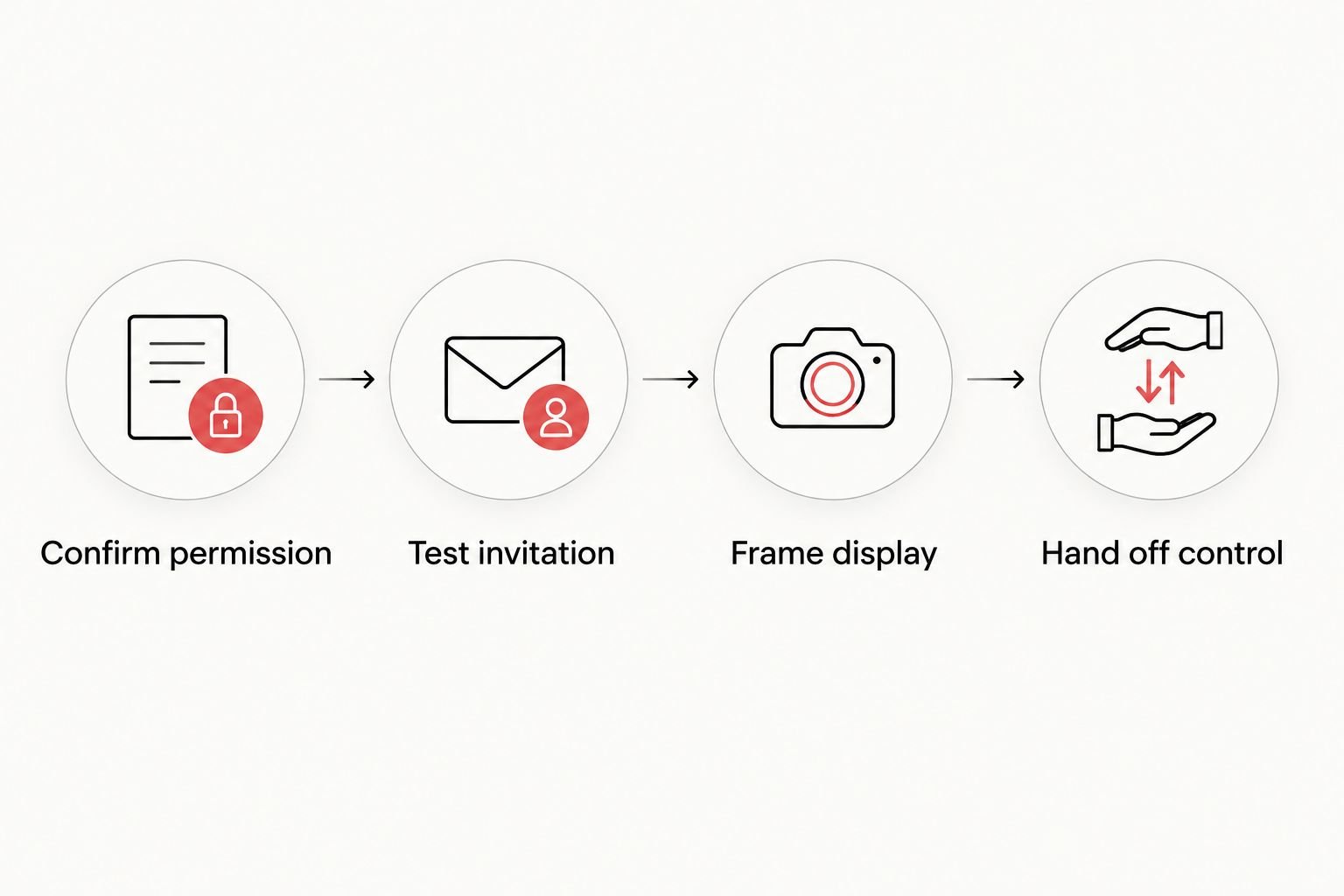
Confirm boundaries and test access before handing the call to your support person.
Keep 1 active audio device per room as a practical setup rule. If another person in the room joins the same meeting, have them disconnect audio so the devices do not feed sound back into each other.
Share an approved recording after the appointment
A recording is the adjacent workflow for relatives who cannot join live. Use it only if the provider permits recording or gives you a file that you are allowed to share; do not assume either is included.
Confirm the permitted material. Ask whether you can record the display, whether staff audio must be excluded, and whether any provider-supplied file has sharing restrictions.
Review before sending. Watch the entire clip for names, conversations, reflections, and anything you did not intend to disclose. Do not send the unreviewed original automatically.
Choose the audience. Send the approved clip privately to the intended recipients. State whether they have permission to download, repost, or forward it.
Keep the original separate. Preserve the original file and use a copy for trimming or announcement edits. Avoid edits that present the image as a medical finding.
Expected result: Family members receive the material you chose, without needing to coordinate around the appointment or watch private conversations.
A family keepsake and a public announcement need different privacy choices. Using acrylic photo blocks for baby announcements involves selecting a still image rather than sharing the entire appointment; inspect that image for identifying details just as carefully as a video clip.
For a 2026 announcement, choose the audience before choosing the format. A relative's permission to watch privately is not your permission for them to publish the image elsewhere.
Troubleshooting
A relative cannot enter the meeting
Confirm that the guest opened the complete invitation and that the organizer has joined. Look for an admission request; if an account restriction blocks entry, resolve it with the organizer's account settings or use an already-tested alternative outside the appointment.
Do not make the sonographer wait while everyone creates accounts. If access remains blocked, continue the appointment and use the approved after-visit sharing plan.
The display looks dark, striped, or reflective
Change the phone's angle and distance within the position staff permits. Tap the display area in the phone's camera view to adjust focus and exposure, and avoid placing your own reflection over the image.
Do not change clinic equipment settings. If filming the screen remains unclear, accept the limitation rather than requesting extra scanning for the call.
Everyone hears an echo
Disconnect audio on additional devices in the same room. Ask remote households to do the same, and have listeners mute their microphones when they are not speaking.
Lower speaker volume if it is disruptive. The goal is shared viewing, not room-filling commentary.
The picture freezes or the call drops
Check whether the phone still has a working connection. Use another connection only if it is permitted, then try rejoining from the existing invitation.
If the connection remains unreliable, stop troubleshooting during the scan. Send a brief update afterward and share only the images or recordings you are authorized to distribute.
A private discussion starts while family is watching
Leave the call or disable both camera and microphone immediately. Muting alone does not stop the picture, and turning off video alone does not stop sound.
Resume only when you and staff agree. You never need to justify choosing privacy.
Customize your workflow
For your 2026 visit, build the plan around who needs to participate, not how many features the app offers. Assign one family contact to relay logistical updates, let distant relatives join only when invited, and keep an approved recording as a backup rather than a requirement.
When arranging pregnancy ultrasound imaging with The Ultrasound Concierge, ask about video-call permission alongside your appointment questions. Follow the practice's preparation instructions and keep diagnostic concerns with your prenatal care team.
FAQ
What's the best way to livestream a 3D/4D ultrasound to family?
Use a private video call with the imaging provider's permission and let a support person manage the phone. Test the invitation, camera, and sound beforehand, and stop sharing whenever you or staff need privacy.
Does The Ultrasound Concierge include livestreaming with a pregnancy ultrasound?
Confirm livestreaming directly with The Ultrasound Concierge before your appointment. Do not assume a private ultrasound visit includes a direct video feed, recording, or meeting support.
Can I connect my phone directly to the ultrasound machine?
Do not connect your phone to clinical equipment unless the provider explicitly authorizes and manages that connection. This workflow uses a phone camera pointed at a permitted display, not access to the ultrasound system.
Can relatives record the ultrasound video call?
Relatives should record only with your permission and the imaging provider's permission. Agree on screenshots, recordings, forwarding, and public posting before anyone joins.
What if my family cannot join at the appointment time?
Share an approved recording or image afterward if the provider permits it. Review the material first and tell recipients whether they can save or forward it.
Will a video call show the same detail as the ultrasound display?
Do not expect a phone video call to reproduce the display exactly. Camera focus, glare, screen reflections, and connection quality affect what remote viewers see.
Does a livestreamed elective ultrasound replace prenatal care?
No, a livestreamed elective ultrasound does not replace prenatal care or a medically indicated examination. Take medical questions and symptoms to your prenatal care team rather than relying on a family video call.
One last thing
Practice stopping the call, not just starting it. A relative who knows the picture can disappear for privacy is less likely to keep calling back during a sensitive moment. Set that expectation before the appointment, then give yourself permission to be fully present.